
Family Portal
Important Information
Upcoming events
-
![]()
Potty Training Workshop
Thursday, April 23 at 5 PM
Join us at Pilgrim Community Preschool for a workshop on starting your child's potty training journey. This training will cover Jamie Glowacki’s Oh Crap! Potty Training method and will address essential topics including readiness, regressions, accidents, and much more.
-
![]()
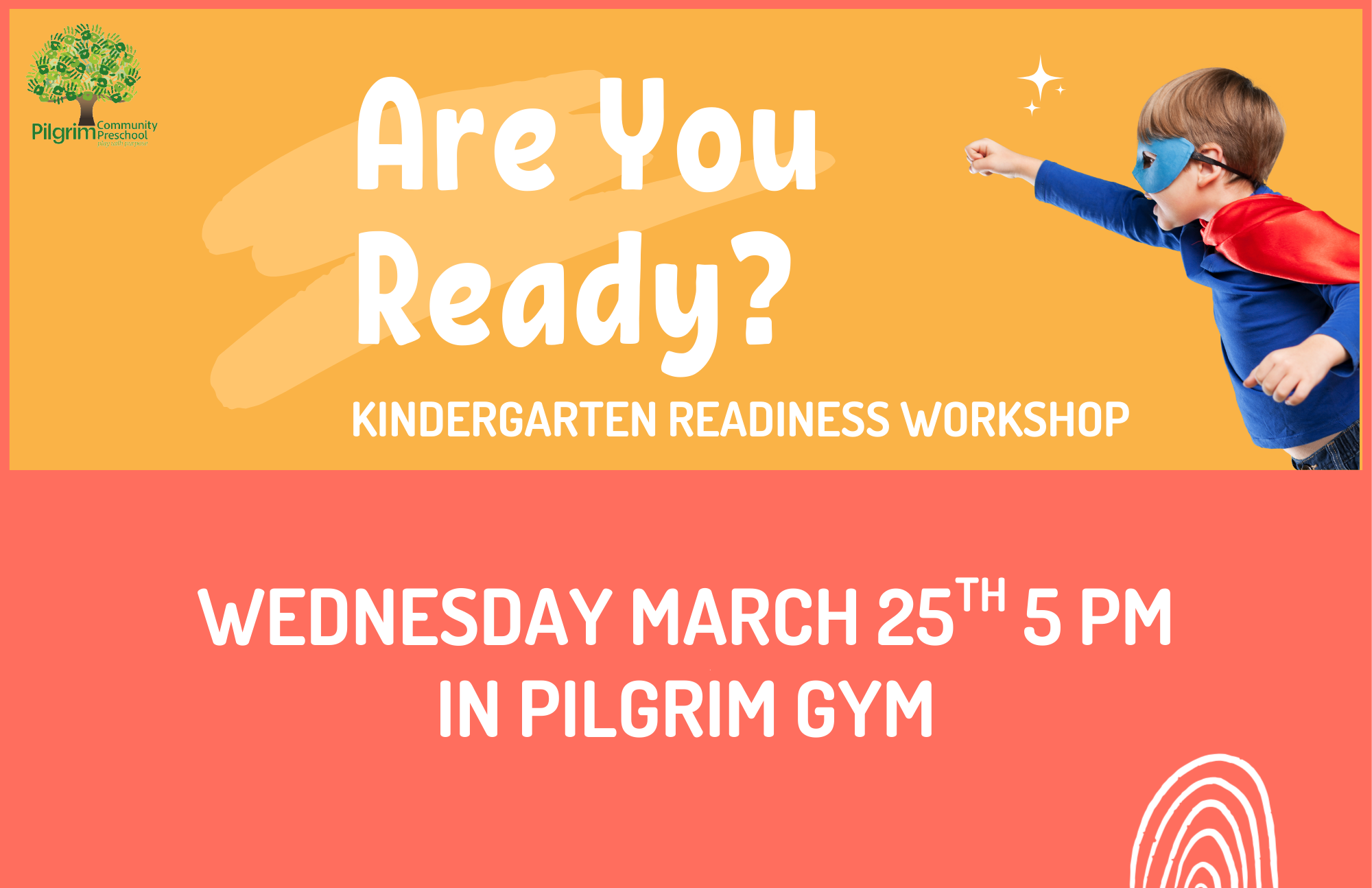
Kindergarten Readiness Workshop
Wednesday, March 25 at 5 PM
Join Pilgrim parent and Kindergarten Teacher Hannah Tatro for conversation about Kindergarten Readiness! Topics such as what you and your child may expect in a typical school day along with Kindergarten readiness skills for your child will be discussed with time for Q & A.
Childcare available!

How to Use brightwheel
Click below to download a brightwheel tutorial.
FAQs
-
Each child has a unique 4-digit check-in code automatically assigned to them and can be customized at any time. Codes can be found and edited in your brightwheel account. To view code, open the brightwheel app, select Edit Profile, and scroll down to Check-In Code.
-
Parents can manage their student's profile to update basic personal information and manage additional student contacts. Please provide contact information for anyone who is authorized to pick up your child from school.
Open the brightwheel app and tap Profile on the top-right corner. From there you can make changes to any of the following fields:
Name and DOB
Notes, Allergies and Medicine
Student Contacts
Doctor Info
Adress
-
There are two types of brigthwheel message threads to communicate with us.
One thread is for communications between you and the Teachers assigned to your child’s classroom. Both Teachers and Administrators can view and respond to this message thread.
The second thread is for communications between you and Administration only - Teachers won't see this message thread.
All messages are private and confidential, other families and Teachers outside of your child’s assigned classroom can NOT view your brightwheel messages.
-
Yes, Teachers will share weekly newsletters via brightwheel messaging. Newsletters are a specific message type that allow teachers to share longer and more in-depth weekly updates. These messages will display with the bolded message type Newsletter with the title of the newsletter. Tap or click on that message to view the entirety of the newsletter.
Newsletters sent via Brightwheel are unique to your child’s classroom.
Additionally, the Director will email a monthly newsletter containing school-wide updates and information. You can also access the Director’s Newsletters in the Parent Portal.
-
Brightwheel allows you to configure which activities result in a push notification. This allows you to stay engaged while limiting the number of notifications received throughout the day.
We recommend all families turn push notifications on for Messaging to ensure you receive all communication.
To update notification settings, open the brightwheel app, select Edit Profile, scroll down to toggle on/off push notifications for each update type as desired.
-
You can download a year-end tax statement through brightwheel. The statement includes the provider's Employer Identification Number (EIN) and all payment activity by all payers for a student in a given tax year.
To access the year-end tax statement, login to brightwheel on a web browser and follow these steps:
Navigate to the Payments page in your account
From the Accounts tab, select a student’s name to open their account
Open the Statements tab under the purple balance tile
Click Export next to the Family (year) payer tax statement drop-down
Download or Export the statement and then open it
Use the Total Payments (if one payer) or Paid by tiles (if multiple payers) at the top of the statement to determine total payments made in the previous calendar year
-
Use street parking to drop off children in their classroom location, and for pickup. When using street parking, ensure that you display the sign we provided that reads “Pilgrim Preschool Drop-Off” on your dashboard to avoid receiving a ticket.
Please note that the parking lot is CLOSED for use during school hours, do not drive into the lot unless you are using the Car Drop Off Line.
-
If dropping off for Nature Preschool, line up on Scoville facing north, stopping at the cone. Stay in your car, have brightwheel ready on your phone, unbelt your child if possible. Teachers will come to the first car at cone to check the child in, assist with getting them out, and ensure they arrive in Outdoor Classroom space safely. Move forward as space allows, following traffic signs to U-turn at the garage to drive south. As OPRF traffic patterns may change due to construction, this procedure may change and will be communicated ahead of time.
For all other classes, enter the parking lot, turn right and line up around the outside perimeter of the lot, stopping at the cone near the playground. Stay in your car, have brightwheel ready on your phone, unbelt your child if possible. Staff will come to the first car at the cone to check the child in, assist with getting them out, and take them to their classroom location. Move forward as space permits, do not drive around other cars in front of you!
Car Drop Off Lines end at 8:45 AM. If you arrive after 8:45, please use street parking and bring your child to the main Church entrance; the double red doors facing Lake Street.
-
The Family Directory will be shared with everyone through brightwheel in September. It will also be accessible in the Family Portal under Classroom Information. This directory will include the information of all Pilgrim families, including child’s name, parents' names, and contact information.
If you prefer not to share your information or wish to be removed from the directory, please let us know in your Student Survey.
-
The most effective way to communicate is through Brightwheel messages. If you are running late for drop-off or pick-up, if your child will be absent, or if you have any questions, please use Brightwheel to send a message. Keep in mind that there are two types of message threads in Brightwheel: one for communication between you and your child's teachers, and the other designated for Admin Only.